





























14.How to update the firmware for BR15 R2R?
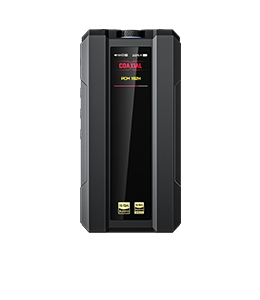
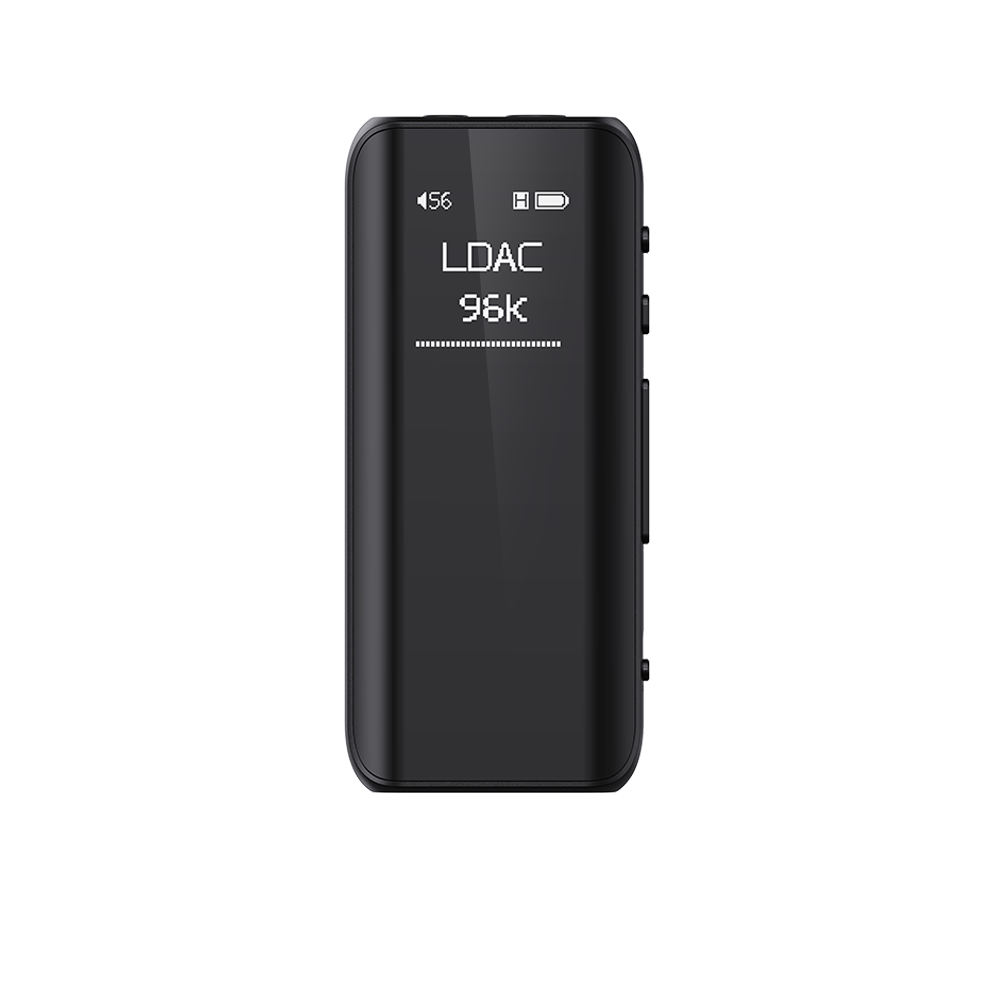
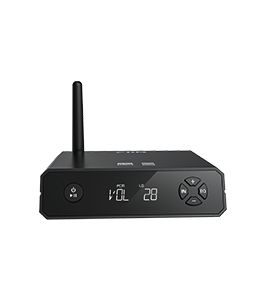
The BR15 R2R contains three independent components with software programs: the MCU, XMOS, and the Bluetooth module. All three components support firmware upgrades. Among them, the MCU and XMOS require upgrades via a computer, while the Bluetooth firmware can be OTA updated via the FiiO Control app.
BR15 R2R Firmware download link: Click Here
-
How to Upgrade the MCU Firmware:
①In the system settings menu, select the firmware update option.
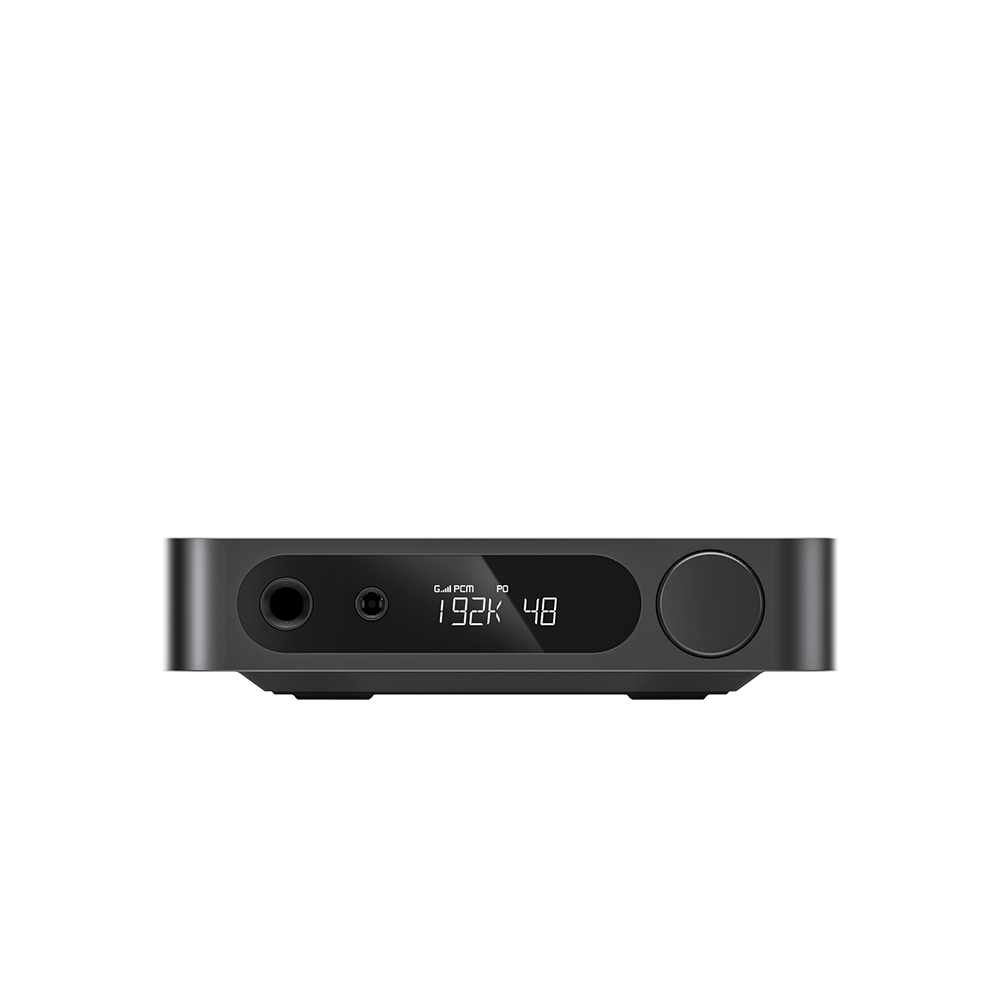
②In the firmware update selection interface, rotate the menu knob to choose "Yes," then press the menu knob briefly to confirm. At this point, the display will show "Waiting."
③Next, connect one end of a USB cable to your computer and the other end to the front panel USB port of the BR15 R2R (do not connect to the rear USB port, as it will not be recognized).
④A storage disk will appear on your computer. Copy the upgrade firmware file (with a “.bin” extension, e.g., BR15R2R_V88.bin) to this disk.
⑤After copying, briefly press the BR15 menu knob again. The display will then show "Upgrading," indicating that the firmware upgrade has started. Upon successful completion, "Upgrade Successful" will appear (or "Upgrade Failed" if unsuccessful). The system will then automatically restart and return to the main interface, completing the upgrade. After the upgrade, you can verify the version number under Menu → Device Information.
Note: The MCU firmware can be upgraded in any working mode. If any abnormalities occur during the upgrade, you can safely power off and restart the BR15 R2R before retrying the upgrade. This operation will not cause firmware corruption or brick the device.
-
How to Upgrade the Bluetooth Firmware:
After installing the FiiO Control app on your phone, connect to the BR15 R2R via Bluetooth. Ensure your phone is connected to the internet. If a Bluetooth firmware update is available, the app will automatically display a pop-up notification. Confirm the upgrade in the app and wait for the system to complete the update automatically.
-
How to Upgrade the XMOS Firmware:
①After downloading the upgrade firmware package from the official website, set the BR15 R2R to USB mode and ensure the EQ is turned OFF.
②Connect the BR15 R2R to your computer using a USB cable (either the side or rear USB port can be used for XMOS upgrades).
③Open the upgrade tool, and once the BR15 R2R device is detected, click "Start" and wait for the upgrade to complete. Do not power off or disconnect the USB cable during the upgrade, as this may brick the device.
Note: If the upgrade fails while the EQ is enabled, simply reopen the upgrade tool and click "Start" again to retry.
