






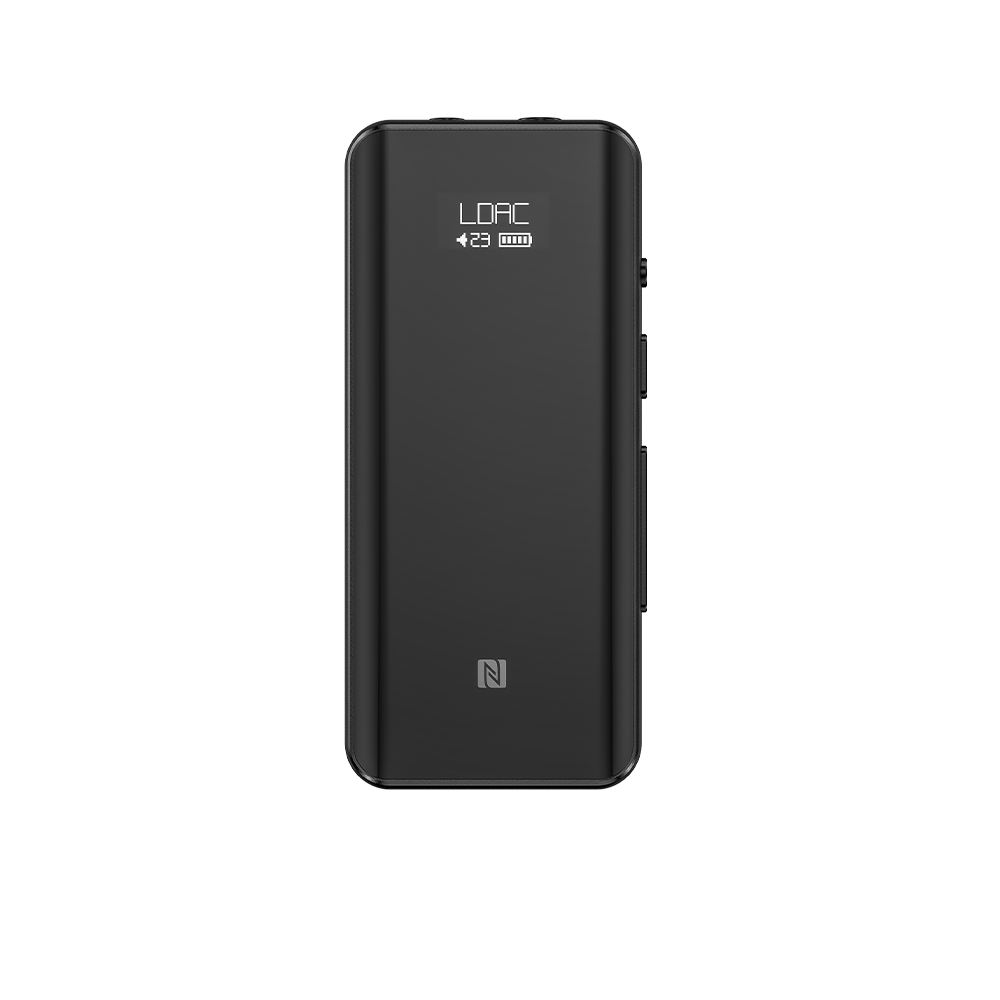


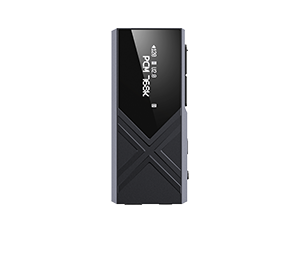




















6. How to connect the QX11 to a phone or computer?
【Android phone/tablet】
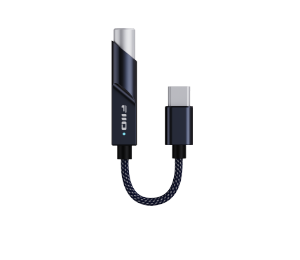
The QX11 can be connected to Android phones or tablets via a Type-C to Type-C data cable. Simply play songs to enjoy high-quality music.
【Note】
-
Due to differences in Android phone or player systems and hardware, some devices may have compatibility issues.
-
Some phones may require manually enabling the OTG function for normal use. Please consult the corresponding phone customer service for specific settings.
-
Some phones may display a prompt saying "Uncertified Type-C digital headset." You can ignore this prompt and use it normally.
-
Some phones may not provide sufficient power when connected, which may prevent normal use. In this case, you can connect an adapter to the side USB port for power supply or connect an ESTICK for power.
【iPhone/iPad】
The QX11 can be connected to iOS phones or iPads via a Type-C to Lightning cable or a Type-C to Type-C cable. Simply play songs to enjoy high-quality music.
【Note】
-
Only Apple devices with iOS 10.0.2 or above are supported. Devices below this version cannot be supported due to limitations of the Apple system itself.
-
Due to the iPhone's limited power output, and because the QX11 has relatively high power consumption, stuttering or no sound may occur at extreme volume levels. In this case, you can connect an adapter to the side USB port for power supply or connect an ESTICK for power.
About some issues with USB "Audio Exclusive Mode"
Due to differences in Android phone or player systems and hardware, there are still some permission conflicts and optimization compatibility issues when playback devices work in "USB Audio Exclusive Mode." The known situations are as follows:
-
Some phones do not have physical volume buttons (such as the HUAWEI Mate30 Pro). In FiiO Music's USB exclusive mode, you can swipe up on the main playback screen to bring up the volume bar and adjust the volume.
-
Some phones' power management policies do not allow third-party programs to run in the background by default. This may cause the music software to sleep and pause playback after a few seconds in USB exclusive mode. You can manually set the corresponding app to "Allow background activity" in the battery management settings.
-
In USB exclusive mode, operating other applications (such as WeChat, Tieba, etc.) may cause audio dropouts or stuttering. This issue is continuously being optimized. It is recommended that if you use USB exclusive mode, focus on listening to music. Otherwise, it is recommended to use non-exclusive mode for music playback.
【Windows PC】
-
Driver-free operation is supported on PCs running Windows 10 or later.
-
Install the FiiO USB driver to support ASIO output and further support DSD512. Download the universal DAC driver from the official website at: Click here
-
In the playback software settings, select FiiO QX11 as the audio output device, connect your headphones, and it is ready to use.
DSD track playback settings: Click here
【Mac】
No driver installation is required for Mac computers.
If connecting to a Type-C port on the computer, simply use a Type-C to Type-C cable. If connecting to a USB-A port, use a USB-A to Type-C cable.
Select FiiO QX11 as the computer's audio output device.
【Linux PC】
Linux systems are driver-free, and in theory, it can be used directly after connection. However, due to the many different versions, it cannot be guaranteed that all systems will be compatible. If it is connected and not recognized, it is recommended to try another data cable or USB port to troubleshoot. If it is still not recognized, it is likely not supported.
