





























7. CLASS A firmware upgrade
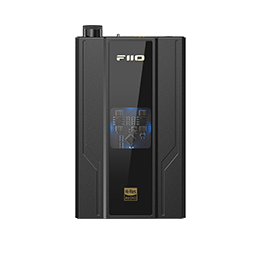
1. With the unit powered off and disconnected from power, press and hold the front-panel power button, then apply power. The unit will enter firmware upgrade mode. The output indicator light and the MUTE indicator light will all stay on, and the volume knob light will show the color of the current firmware.
2. Connect the unit to a Windows or macOS computer via the rear-panel USB port (you may also connect USB first, then enter firmware upgrade mode). The unit will mount a small-capacity USB drive on the computer. Copy the firmware package to this drive. After copying is finished, either ① eject that drive on the computer, or ② short press the volume knob to start the MCU upgrade process. Once the system verifies that the upgrade package is valid, firmware upgrading begins. During the upgrade, the output indicator light and the MUTE indicator light will light up in a chasing pattern.
3. After a successful firmware upgrade, the unit will automatically reboot and return to normal operation.
Can I check the firmware version?
With the unit powered off and disconnected from power, press and hold the front-panel power button, then apply power to enter firmware upgrade mode. The output indicator light and the MUTE indicator light will all stay solid on, and the volume knob light will show the color of the current firmware.
