





























4. How to use D.MODE desktop mode and Super High Gain mode?
The definition of Desktop Mode?
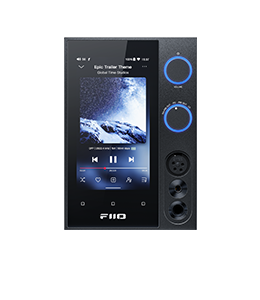
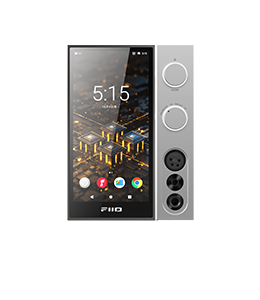
When Desktop mode is enabled, the Desktop mode icon appears on the M25/M25 R2R screen. The player is powered directly through USB; the battery is neither charged nor discharged.
If the USB power supply is insufficient, the battery will provide supplementary power.
When the battery level is below 15%, connecting USB power while Desktop mode is enabled will force the device to complete one charging cycle.
How to enable the D.MODE mode?
-
Connect a power supply to either USB port.
-
Set the D.MODE switch on the side of the M25/M25 R2R to ON.
The definition of Super High Gain mode?
When enabled, the M25/M25 R2R provides higher output power.
Using the 4.4mm output as an example, High gain provides 1000mW at 32Ω, while Super High Gain mode provides 1700mW at 32Ω.
How to Enable Super High Gain Mode?
-
Connect an adapter that supports PD 2.0 or PD 3.0 to either USB port.
-
Go to Settings > Audio > Gain, or open Gain settings from the drop-down menu, and select Super High Gain mode.
Note: When a fast charger is connected and the D.MODE switch is ON, a pop-up will ask whether to enable Super High Gain mode.
How to Use the Multifunction Button?
-
In Player mode, the button can be assigned to: Add to Favorites (default), play a random next track, Play/Pause, delete the currently playing track, cycle through EQ settings, enter USB DAC mode, enter Bluetooth Receiving mode, lock/wake the screen, enter/exit Cassette mode, enter/exit Pod mode, open the drop-down menu, switch the personalized sound profile, open the side volume bar, or No function.
-
In Bluetooth Receiving mode and USB DAC mode, the multifunction button is always set to No function.
Note: This button responds only in Android mode and Pure Music mode. Some functions are available only in FiiO Music.
